SPECIFICATIONS
Accessories Type: Gaming Keyboards,Game Keyboards
Arcade Joystick: fight sticks ps4
Brand Name: haute42
Compatible Brand/Model: PC
Electric: No
Electronic: no
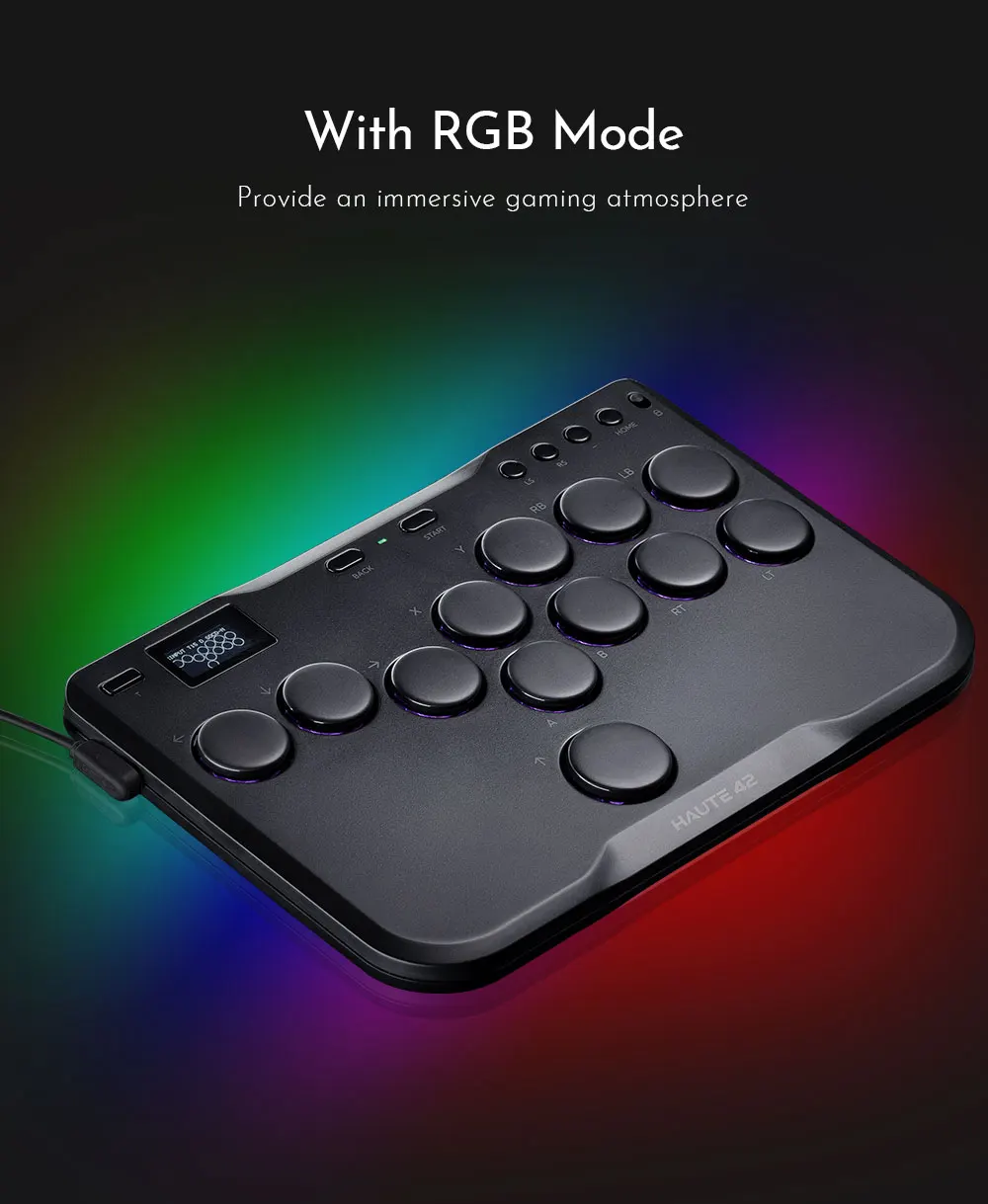
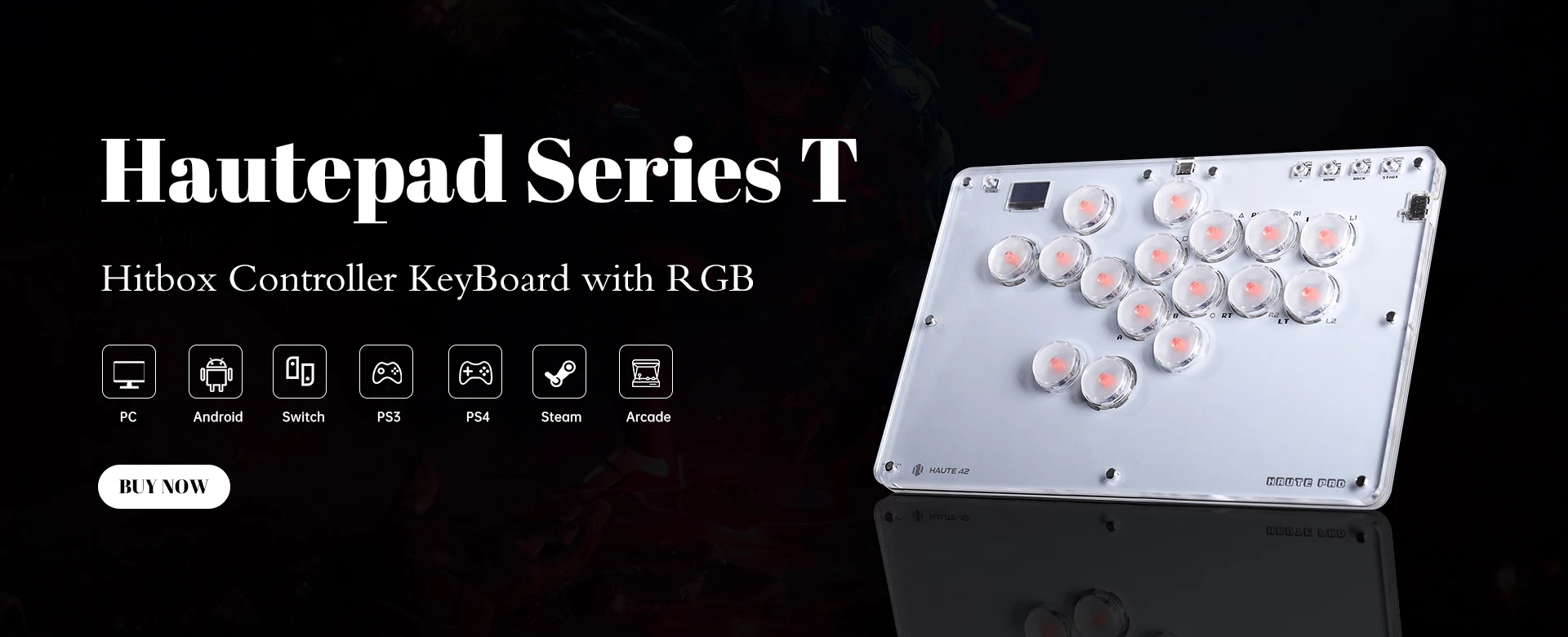
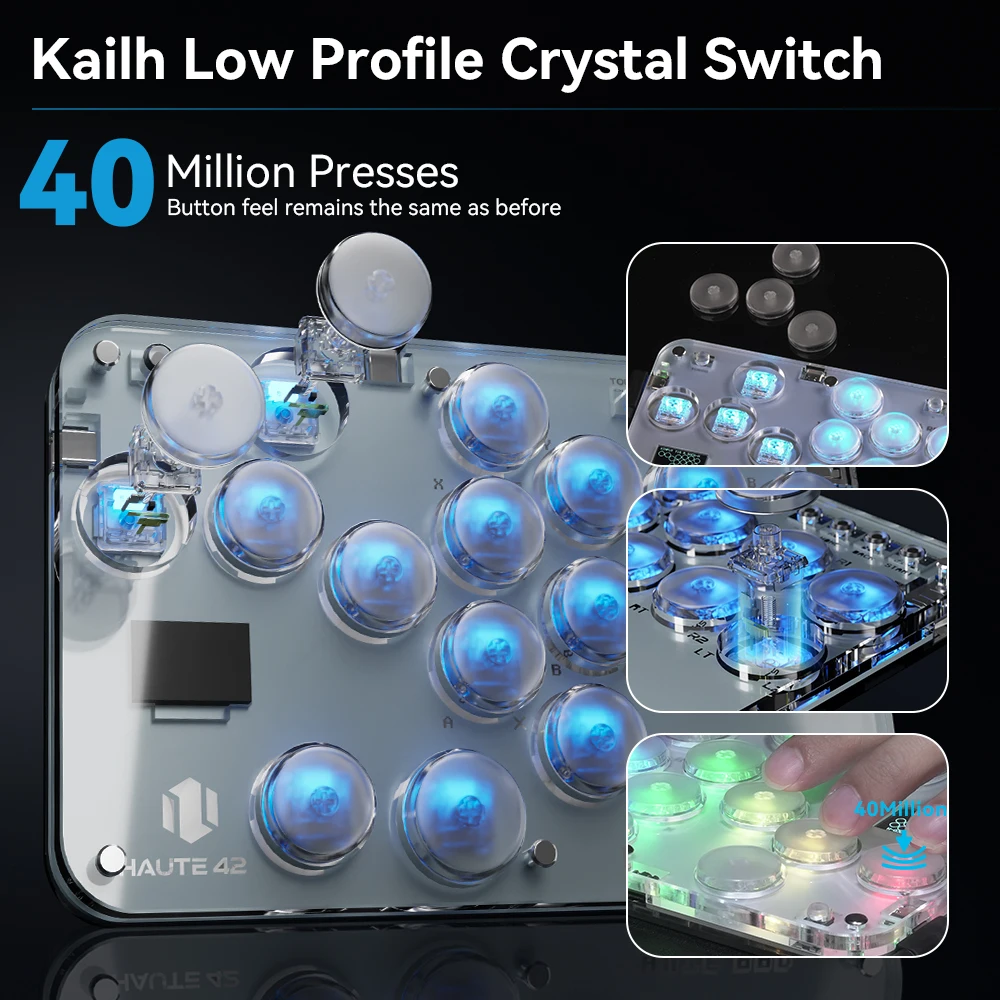
Feature: 16 button with RGB mode
Function: Arcade Fight Stick For PC,Hitbox Fightstick For PS4/PS3,hitbox for Android
High-concerned chemical: None
Item: hitbox style controller
Leverless Controller: Stickless Controller
Leverless Controller Hitbox: Stickless Controller Hitbox
Model Number: Haute42 G16 Hitbox Control
Origin: Mainland China
PC System: Windows 10
With USB: yes
arcade fight sticks: mini hitbox controller keyboard
fight stick arcade: hitbox control
fight sticks pc: hitbox fighting game
gamerfinger hitbox: arcade hitbox controller
hitbox fightstick: arcade fight sticks
is_customized: NO
leverless arcade stick: Fighting Game Arcade Stick
mini arcade hitbox: hitbox style arcade stick
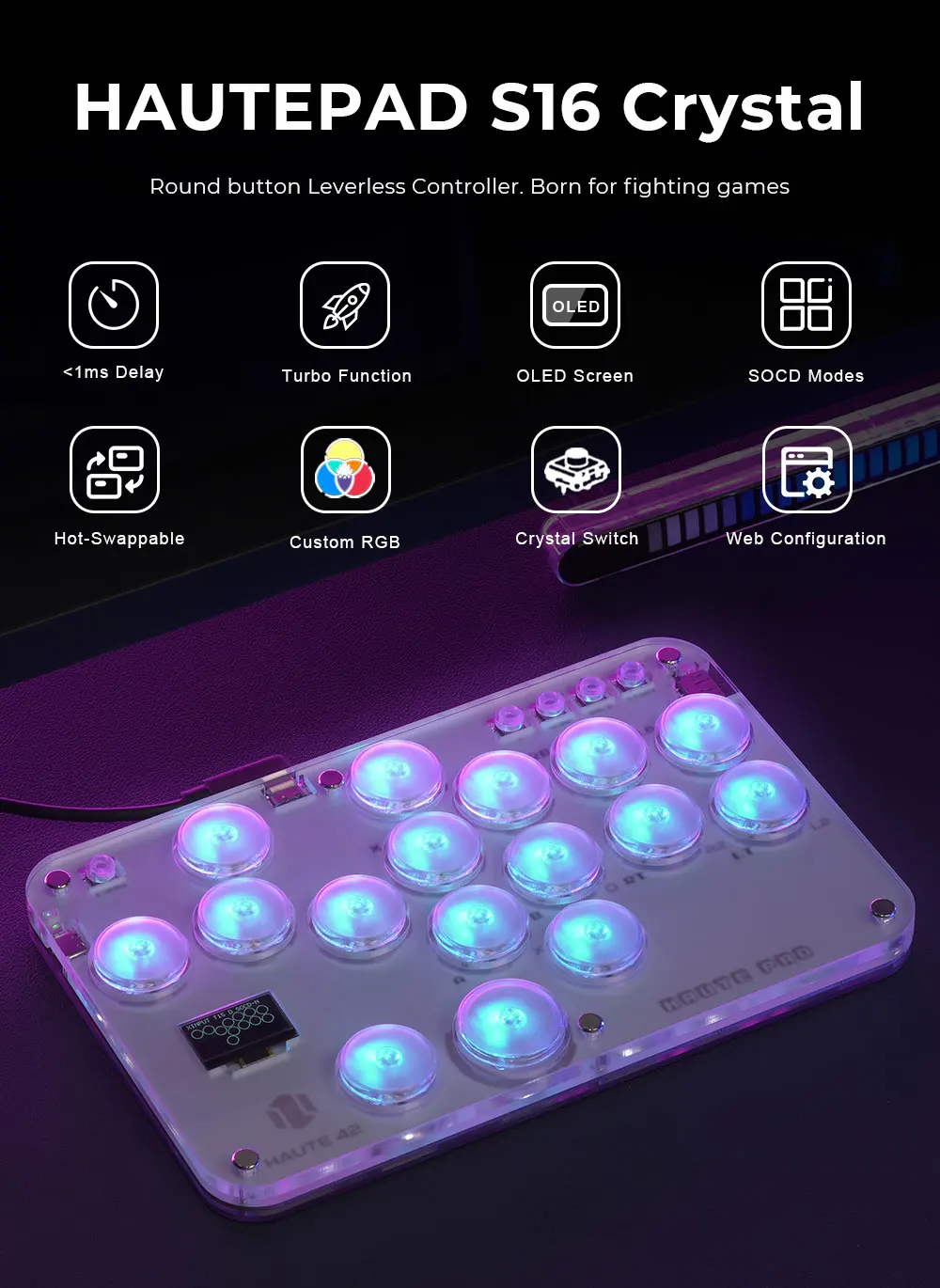
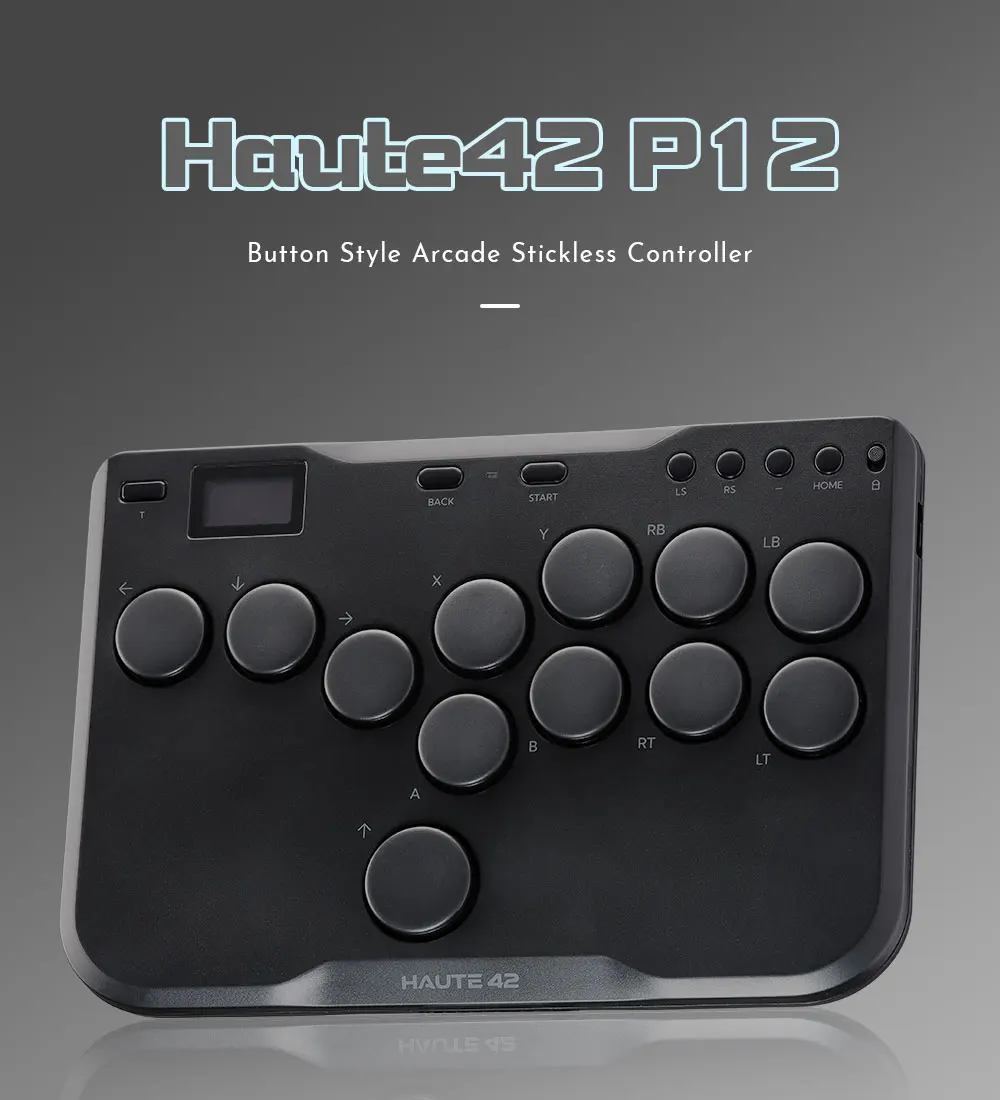
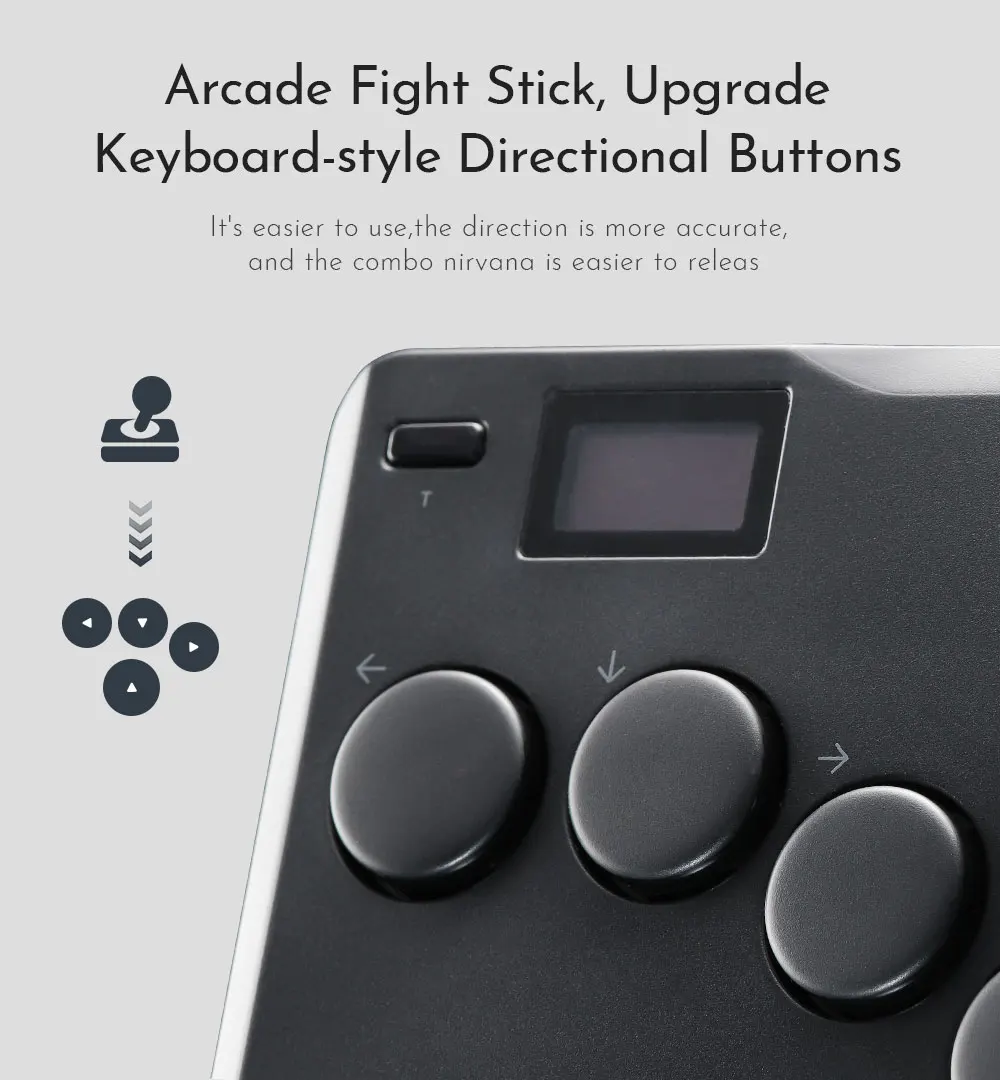
Haute42 Arcade Joystick Hitbox Controller Street Fight Sticks For PC /Ps3/ Ps4 /Switch Hitbox Fighting Game Arcade Game Keyboard


Working voltage: 5V
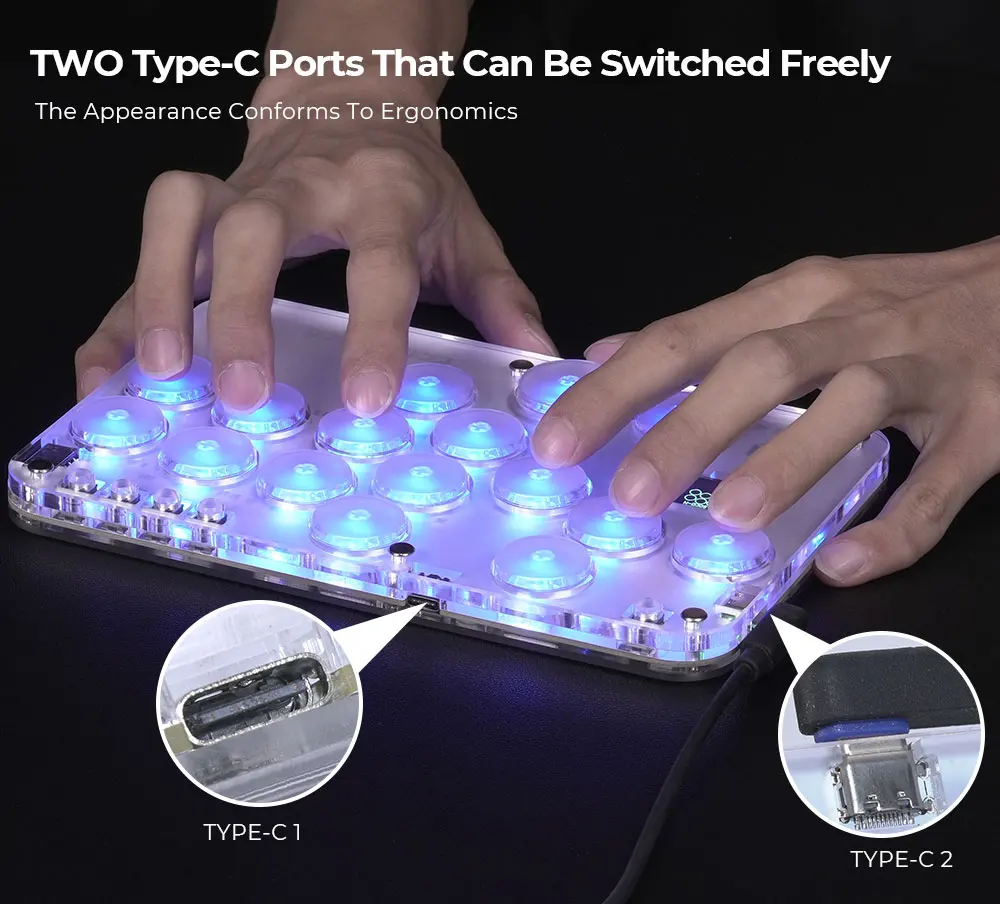
Link method: USB Type-C
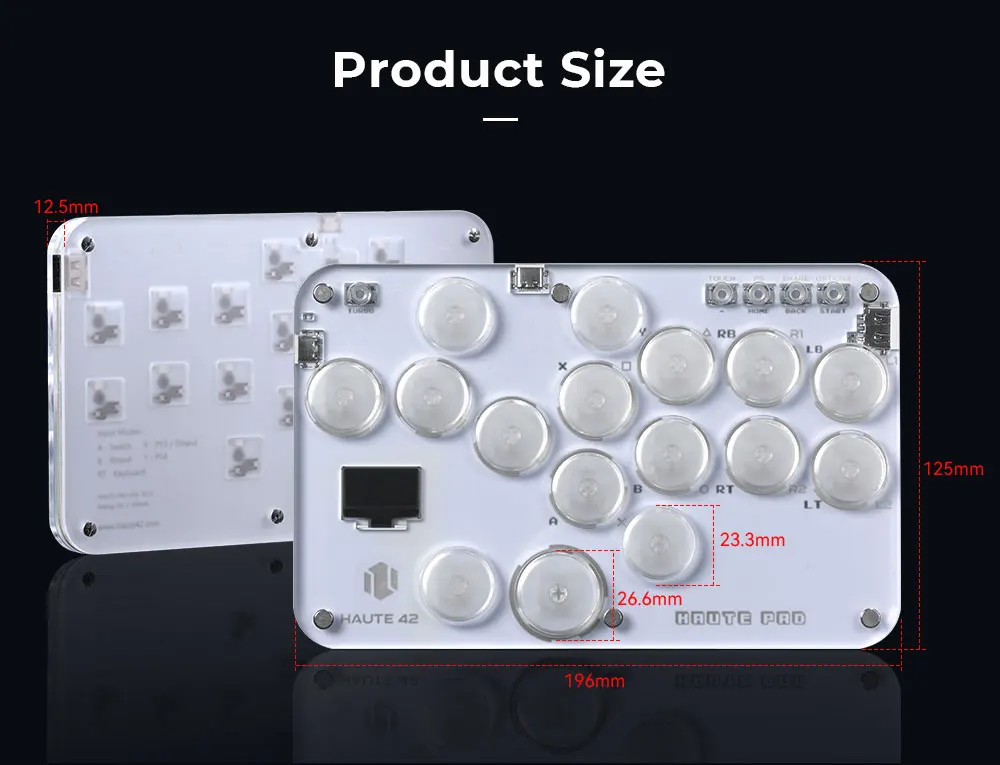
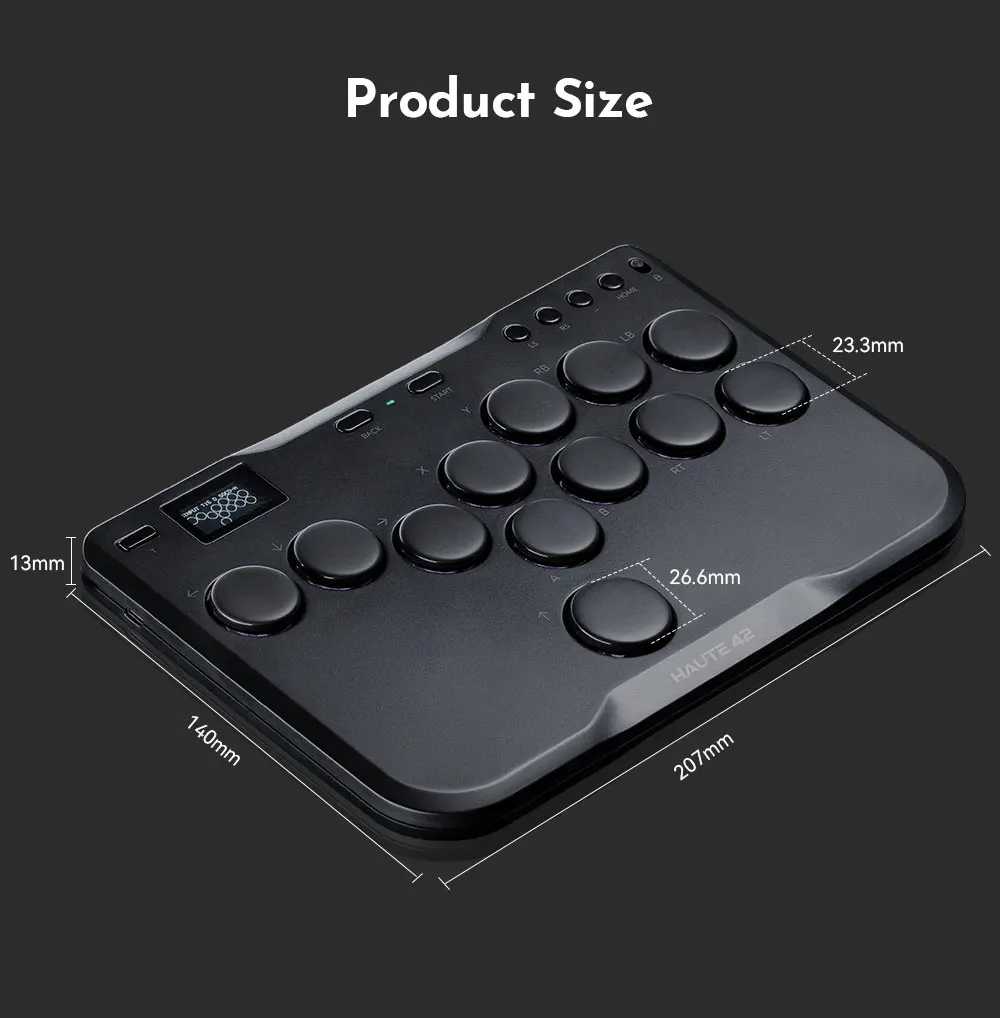
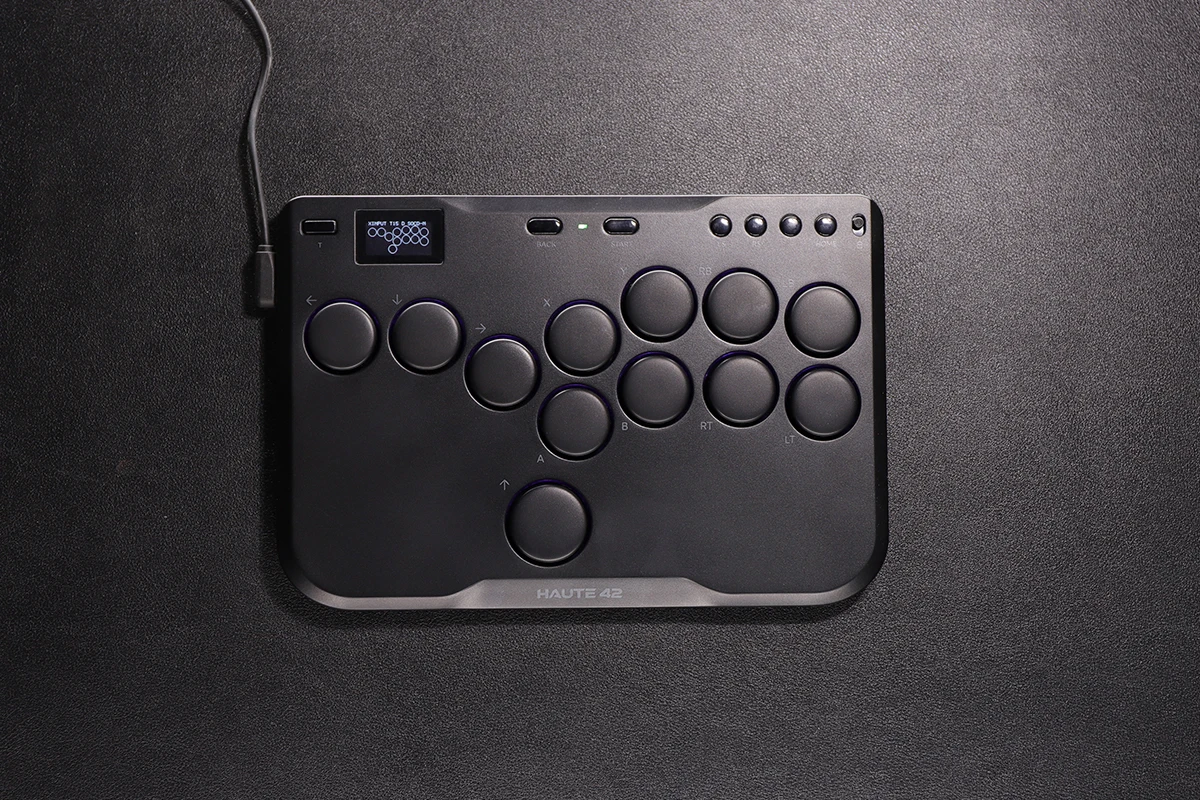
Product size: 196mm * 125mm * 12.5mm
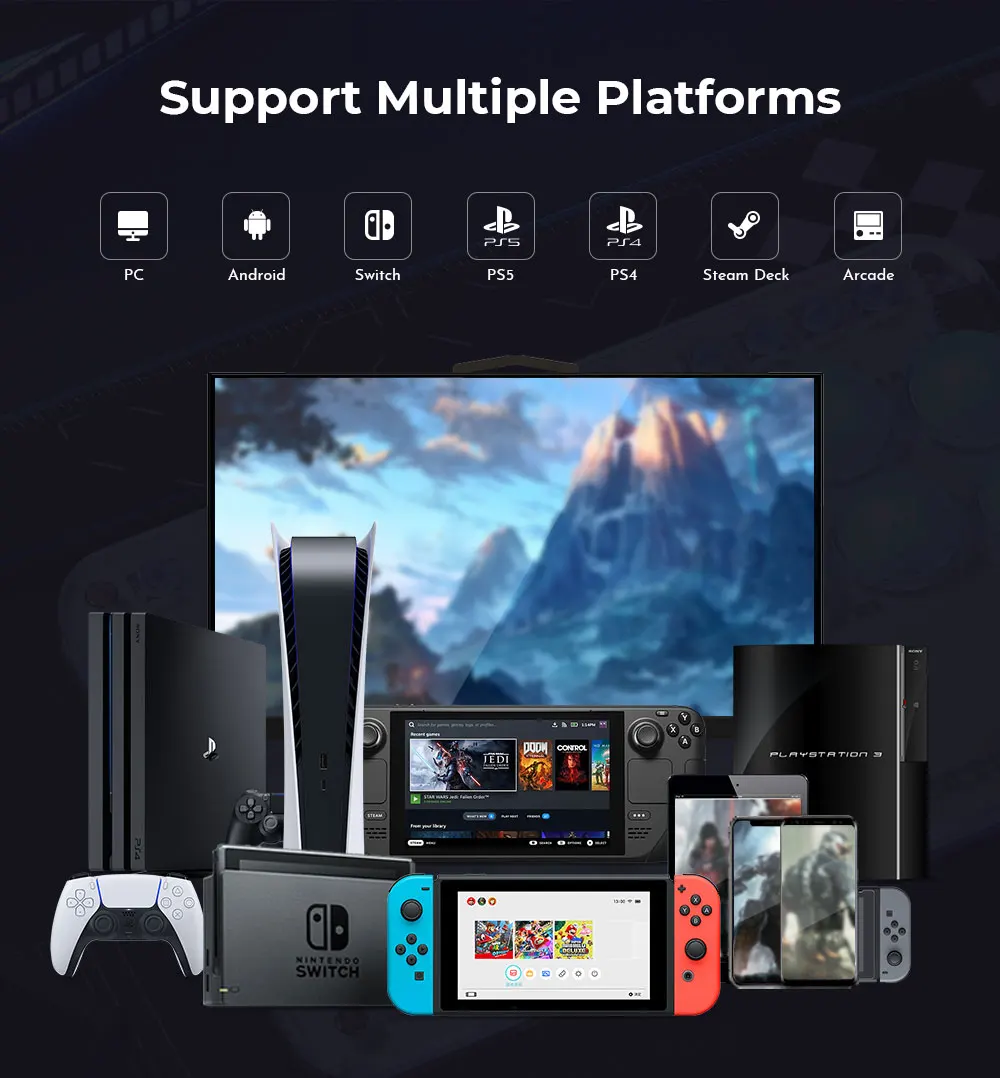
Supported Platforms : pc /ps3/ps4/switch/ Android/Steam
Product Specifications:1Mini Keyboard,1Data Cable Type-C,1Keycap Puller,6 anti slip pads
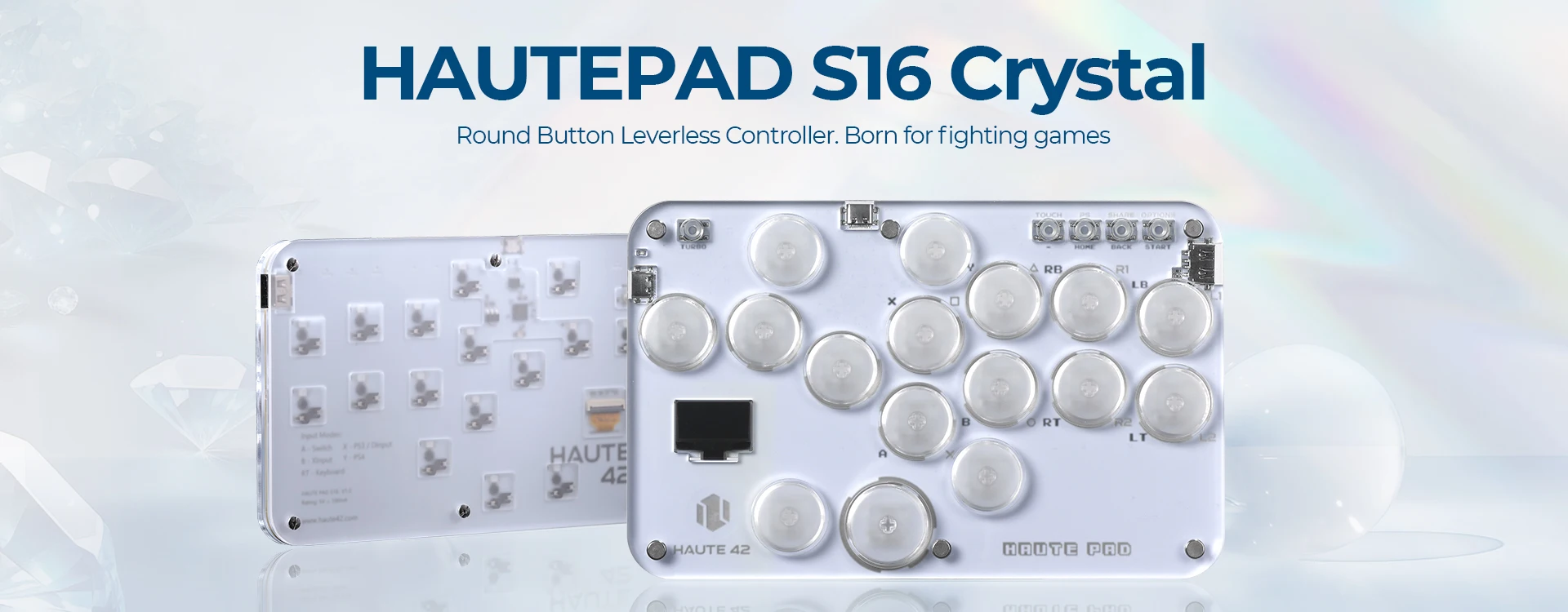
HautePad S16-C
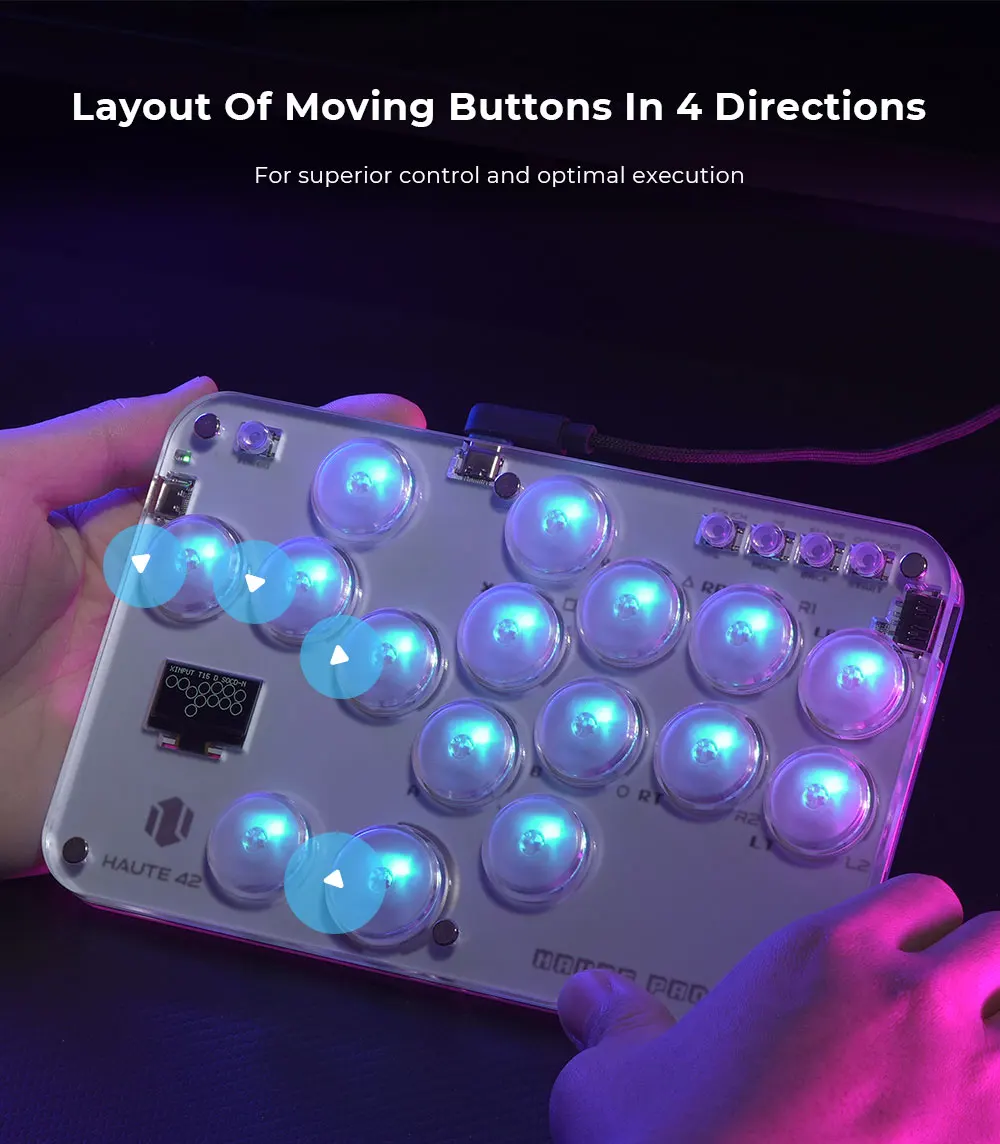
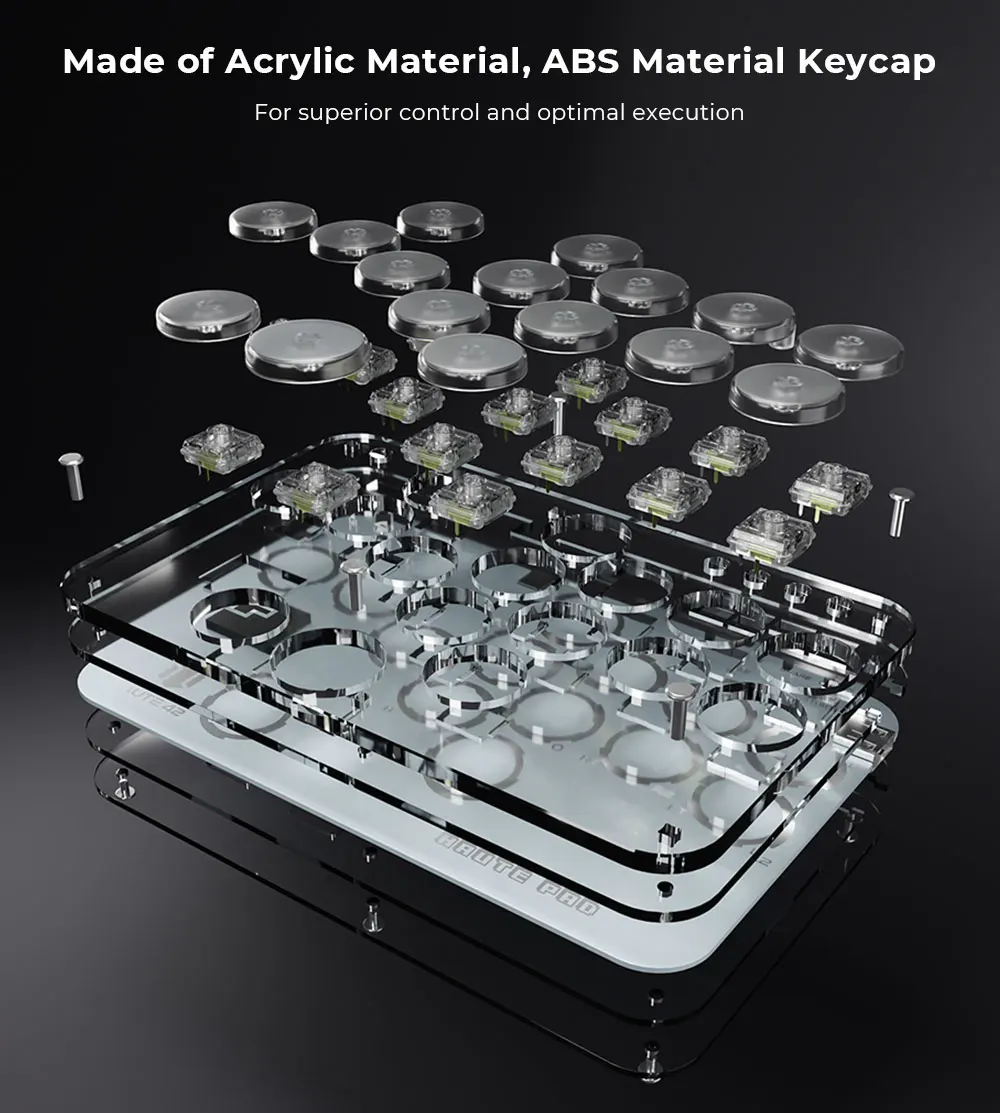
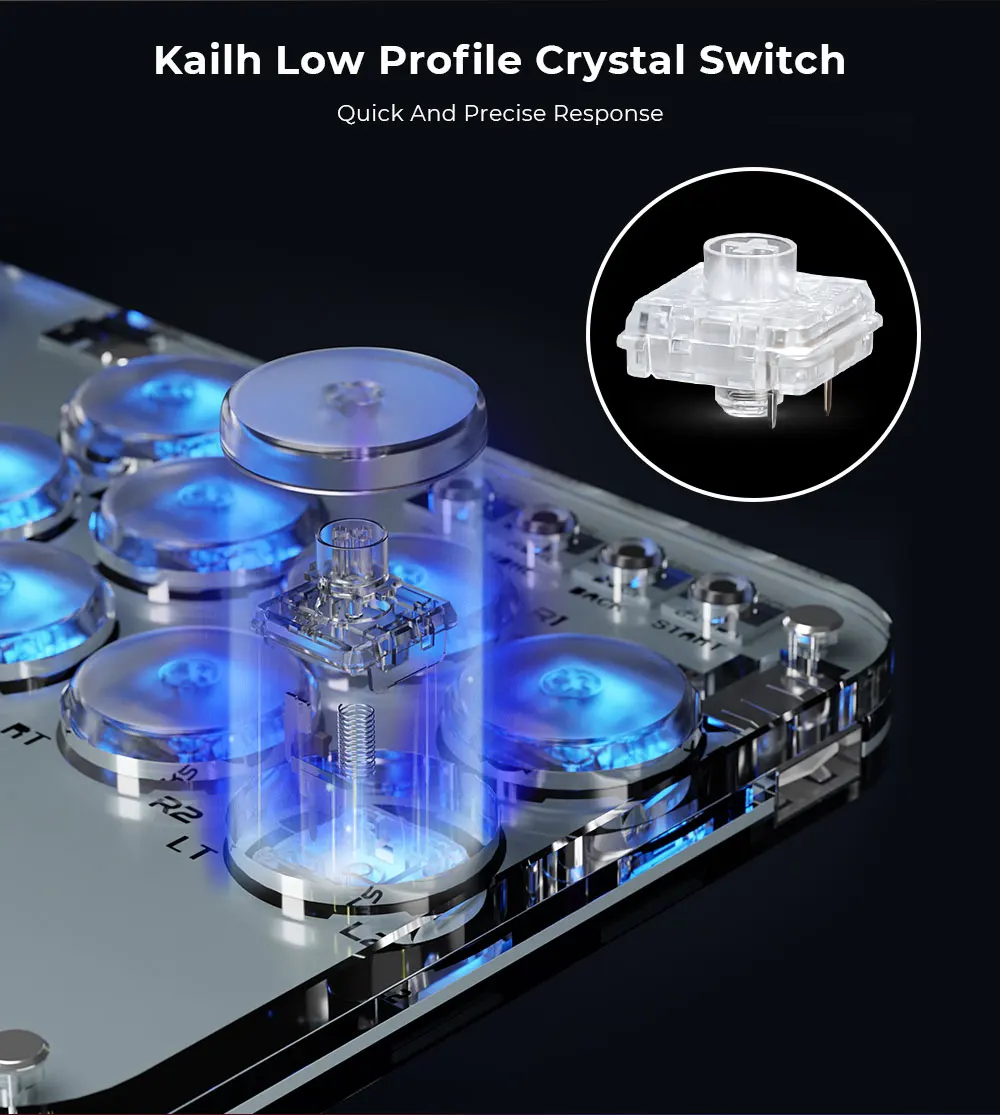
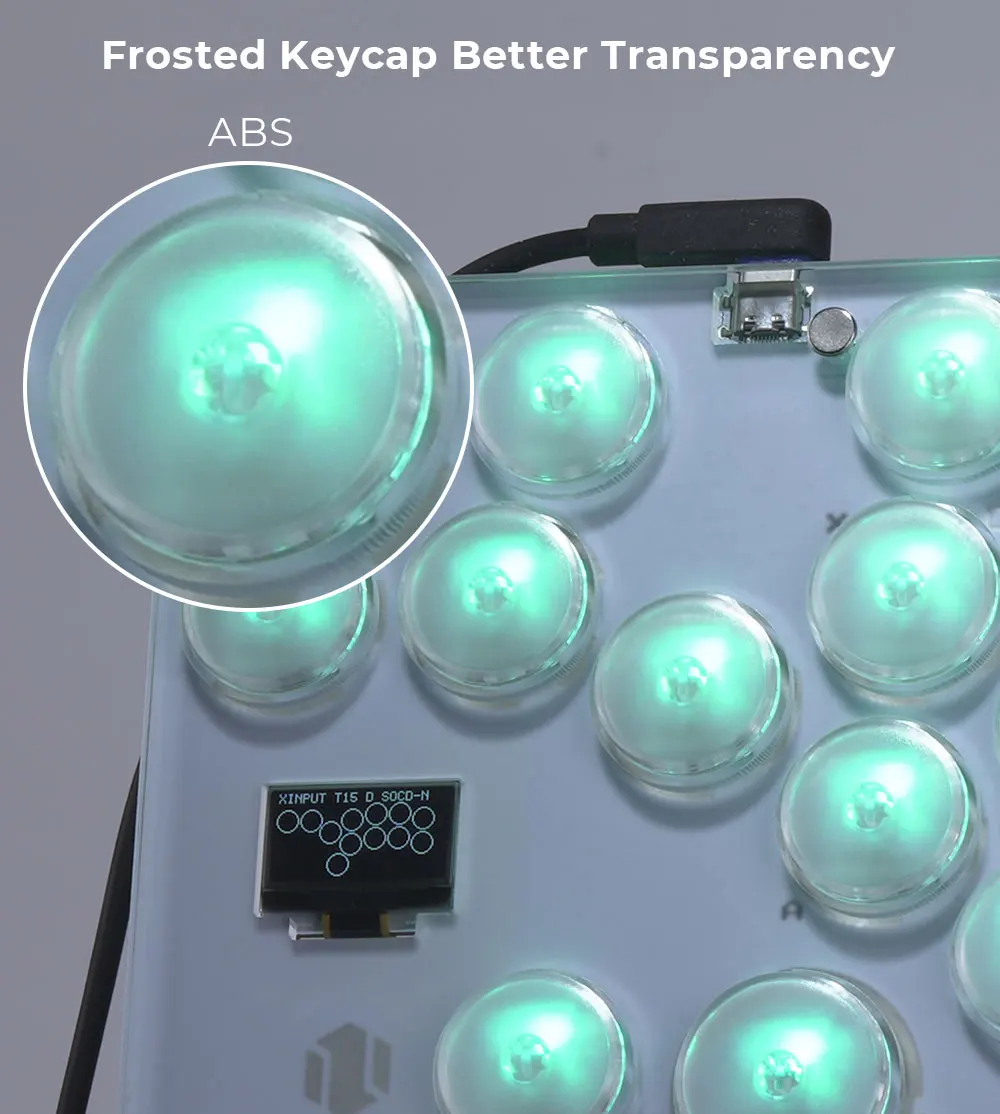
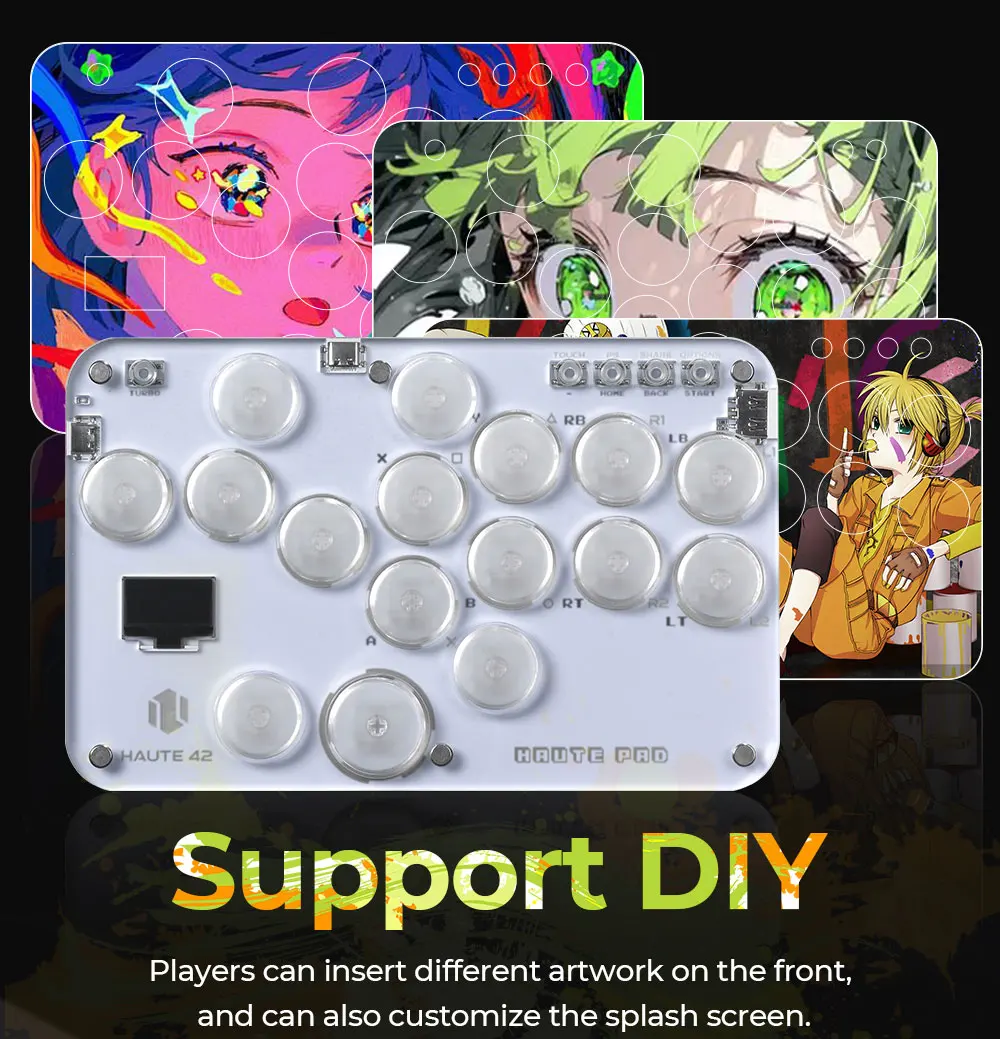
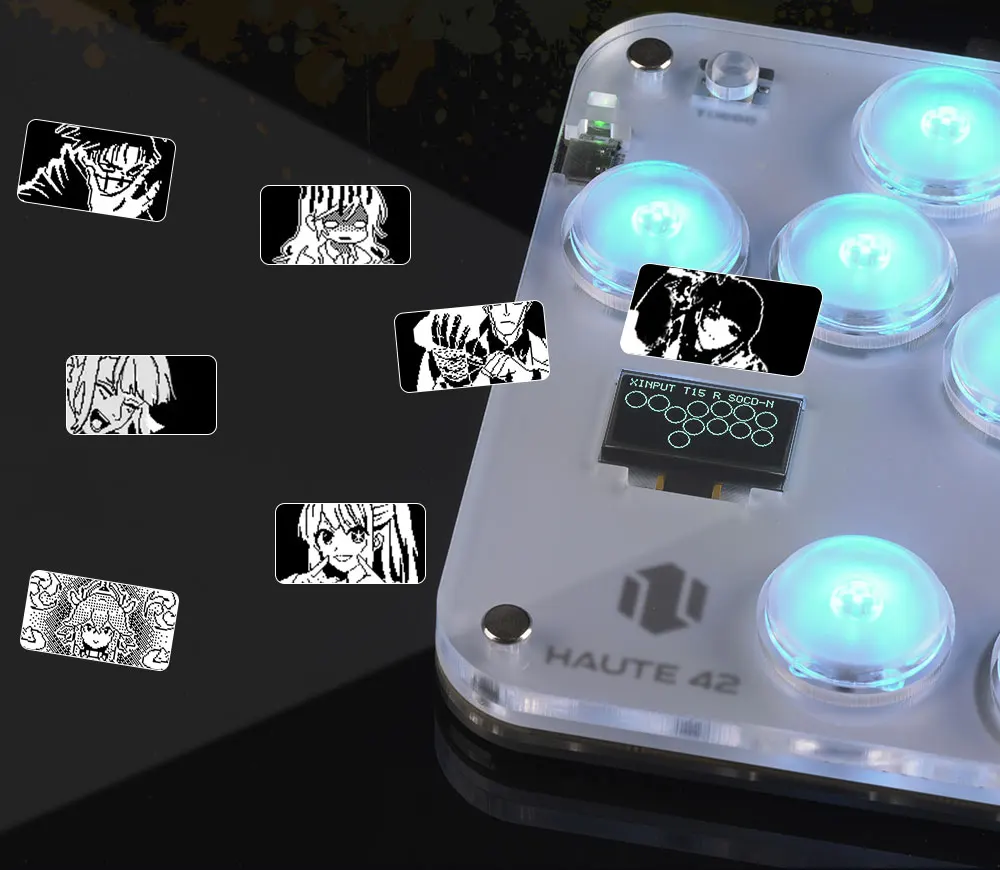
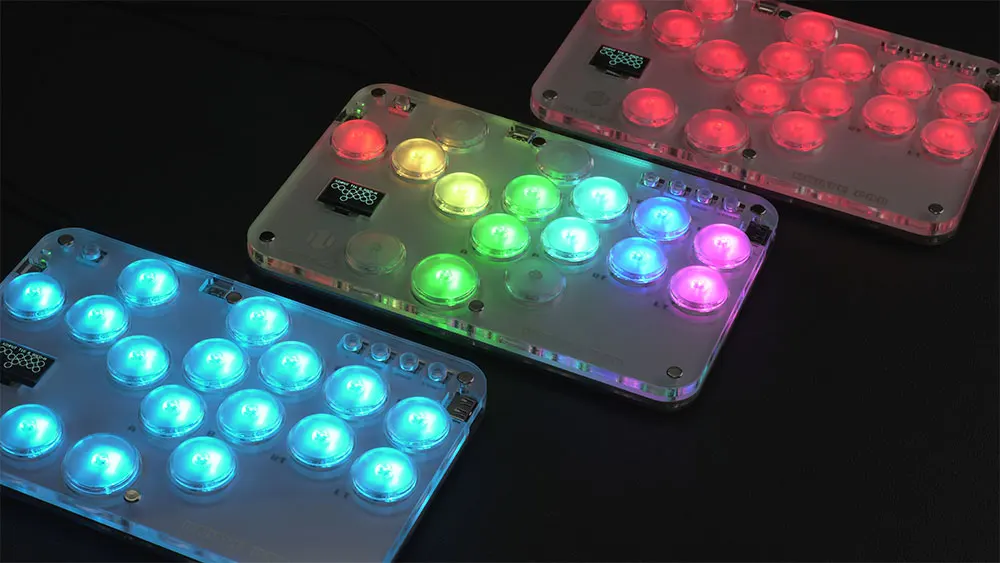
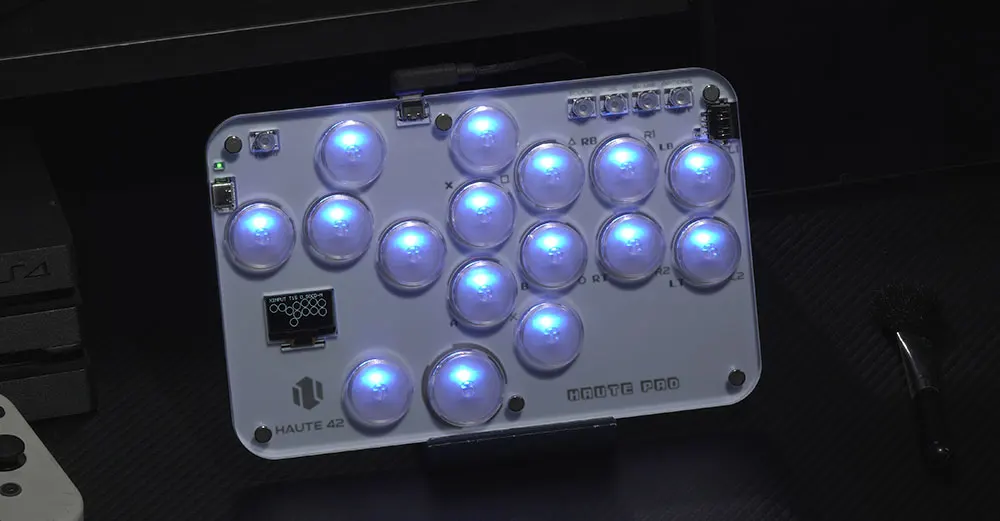
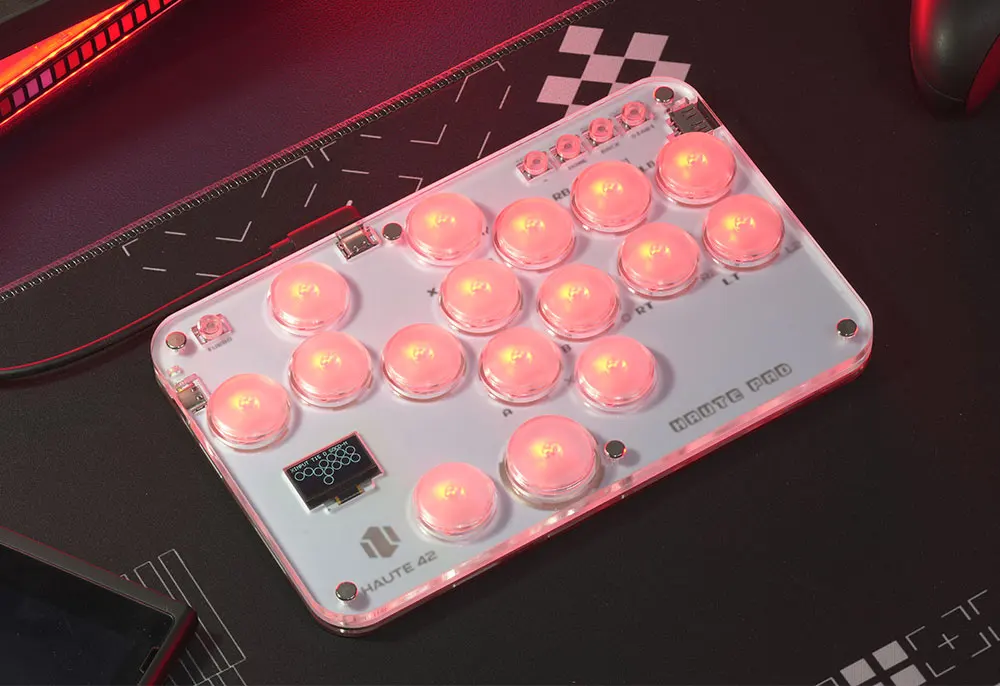
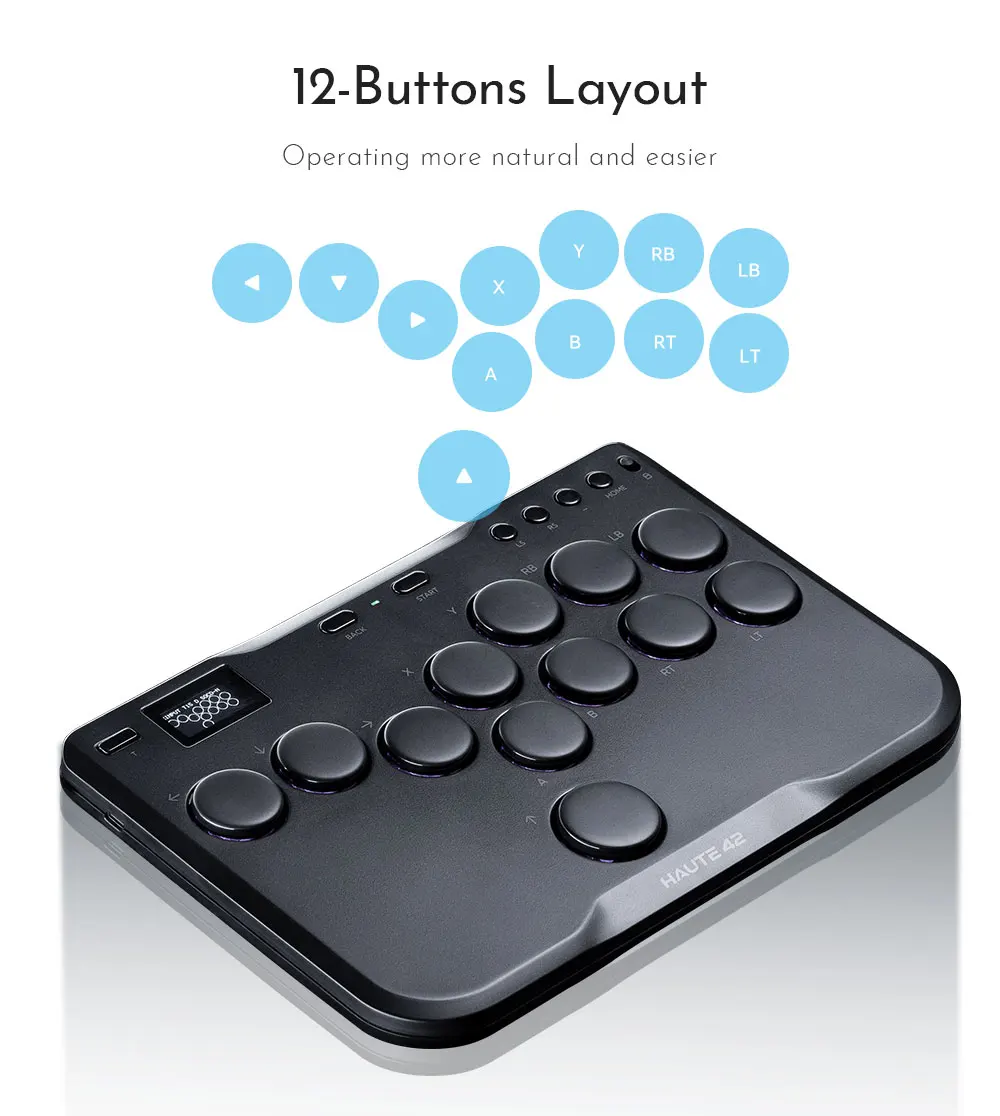
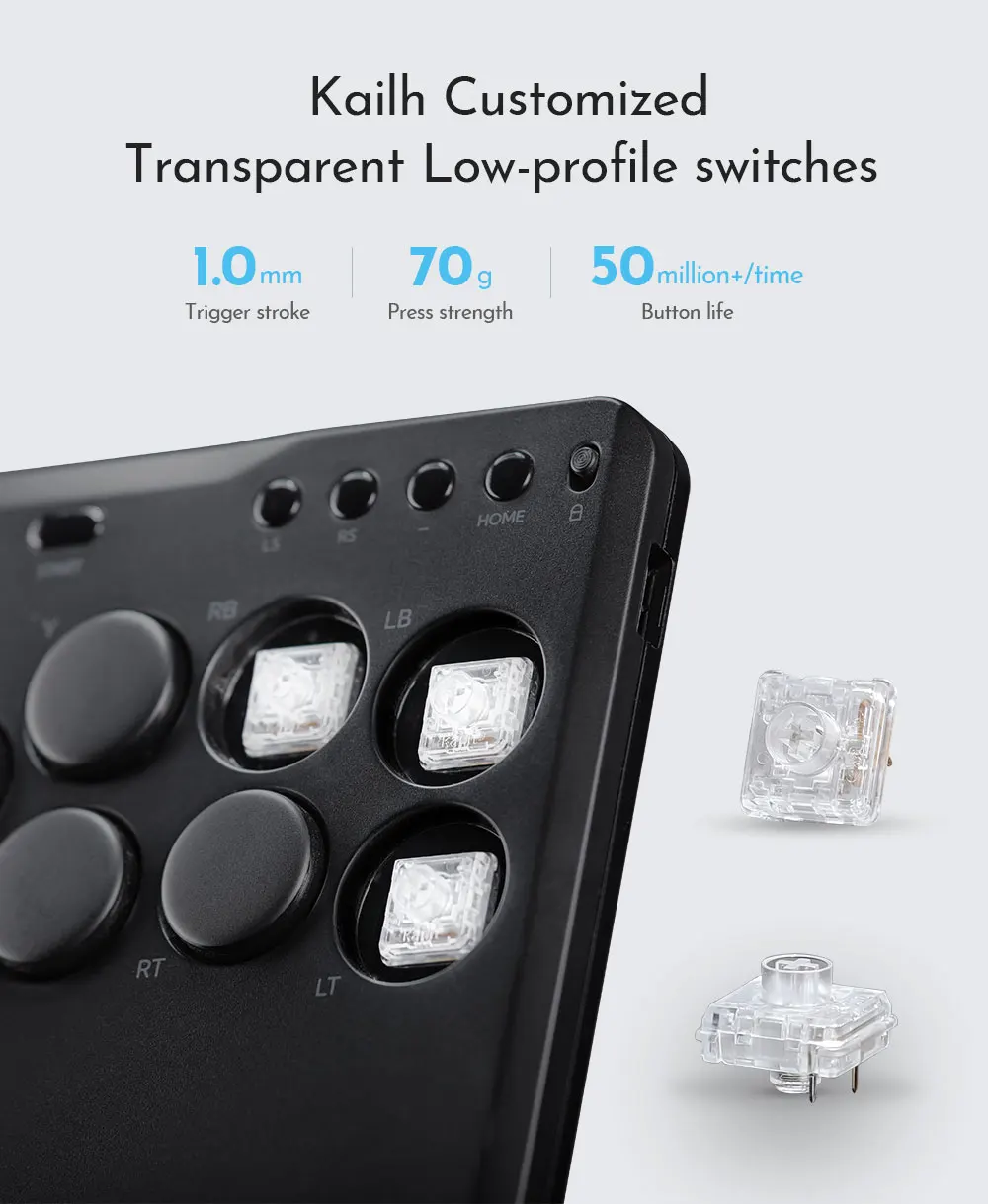
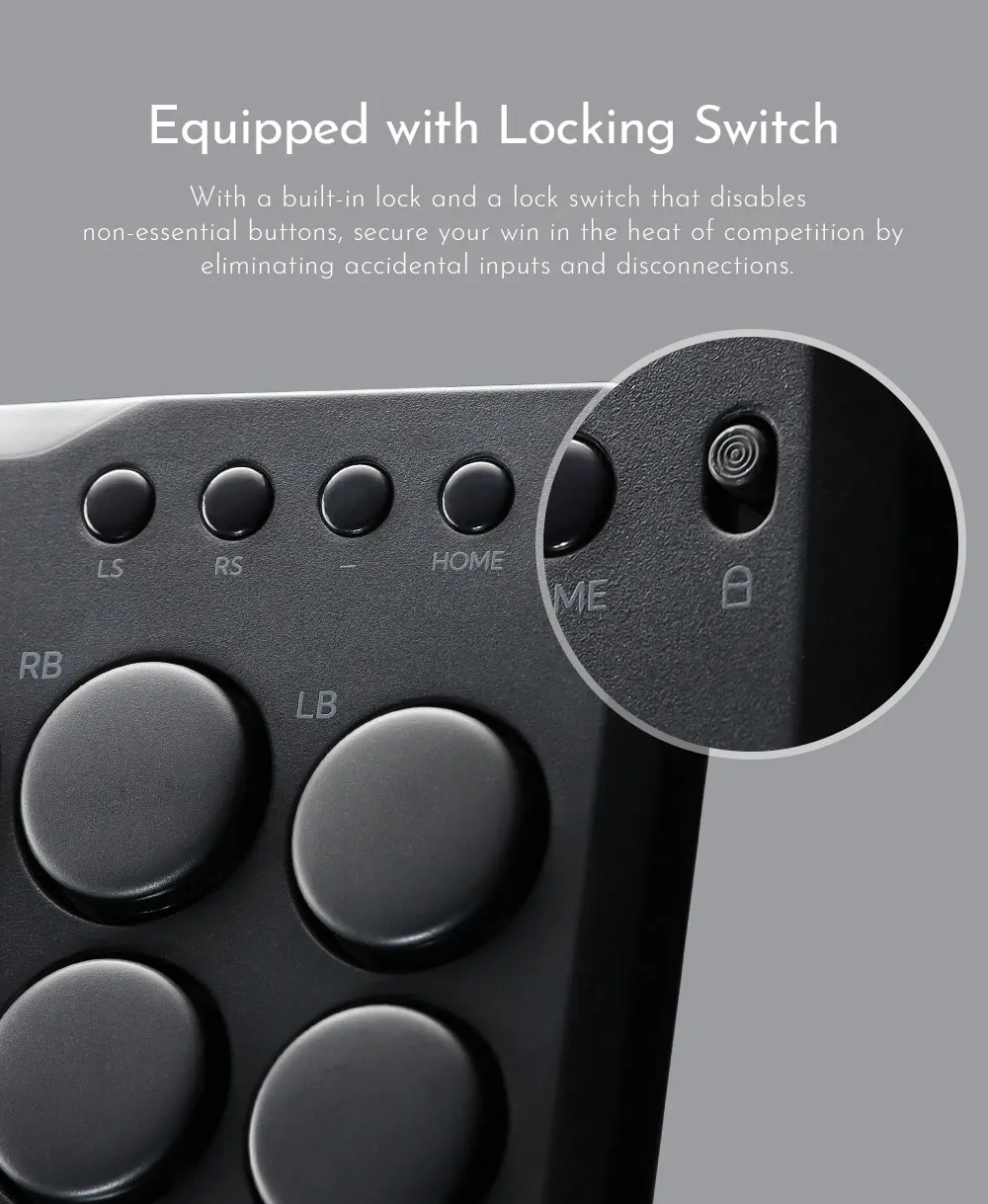
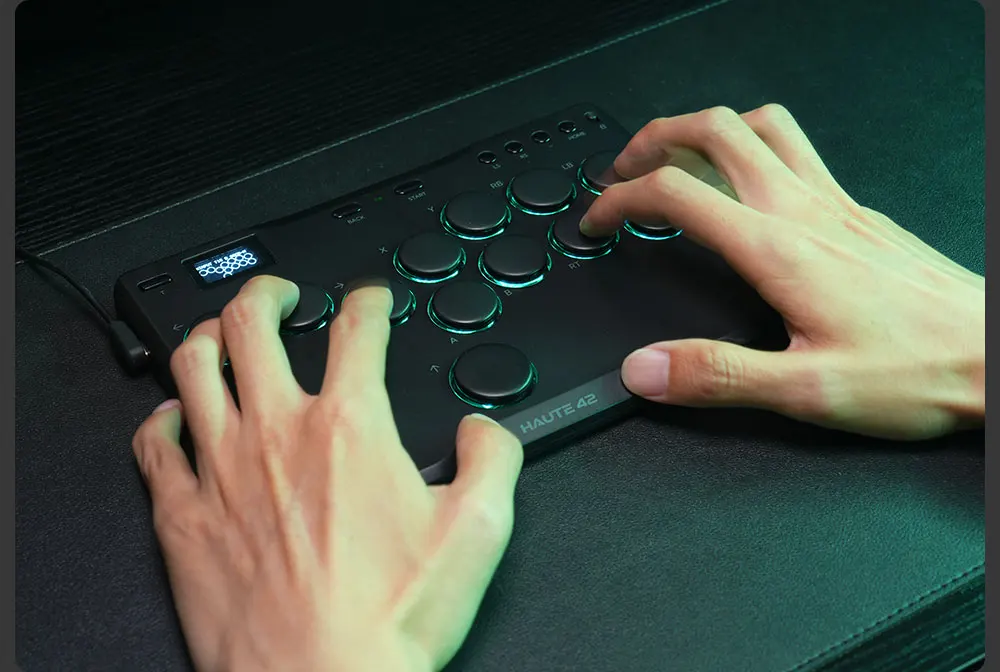
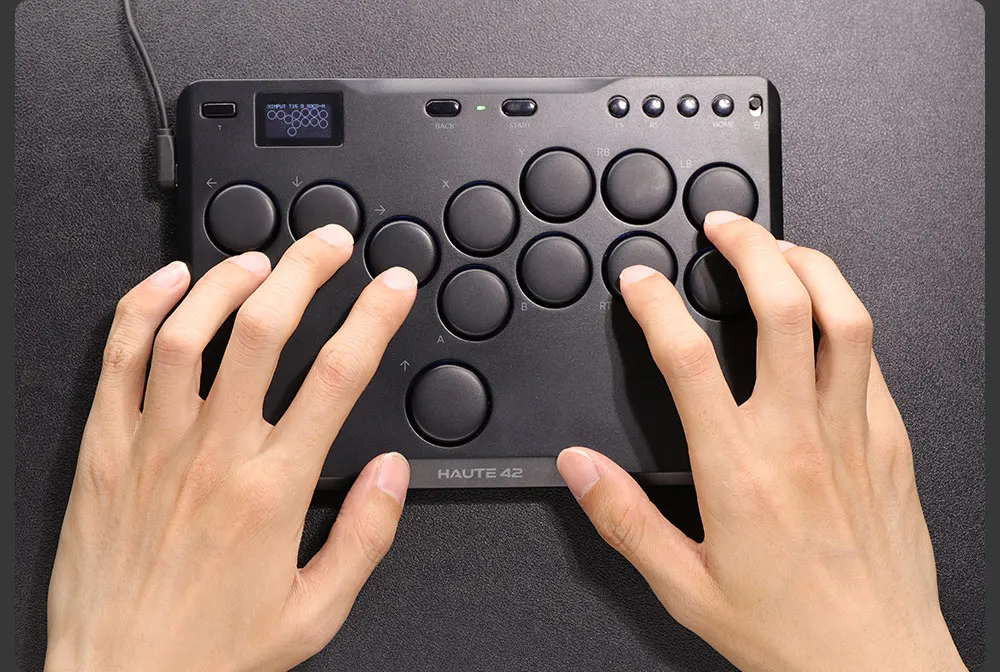
This is a transparent acrylic material with RGB lighting effect, an mini hitbox style arcade keyboard with 16 buttons, providing a comfortable feeling and allowing you to enjoy fighting games. Buyers can create their own hitbox skins to make the controller look cooler and more personalized
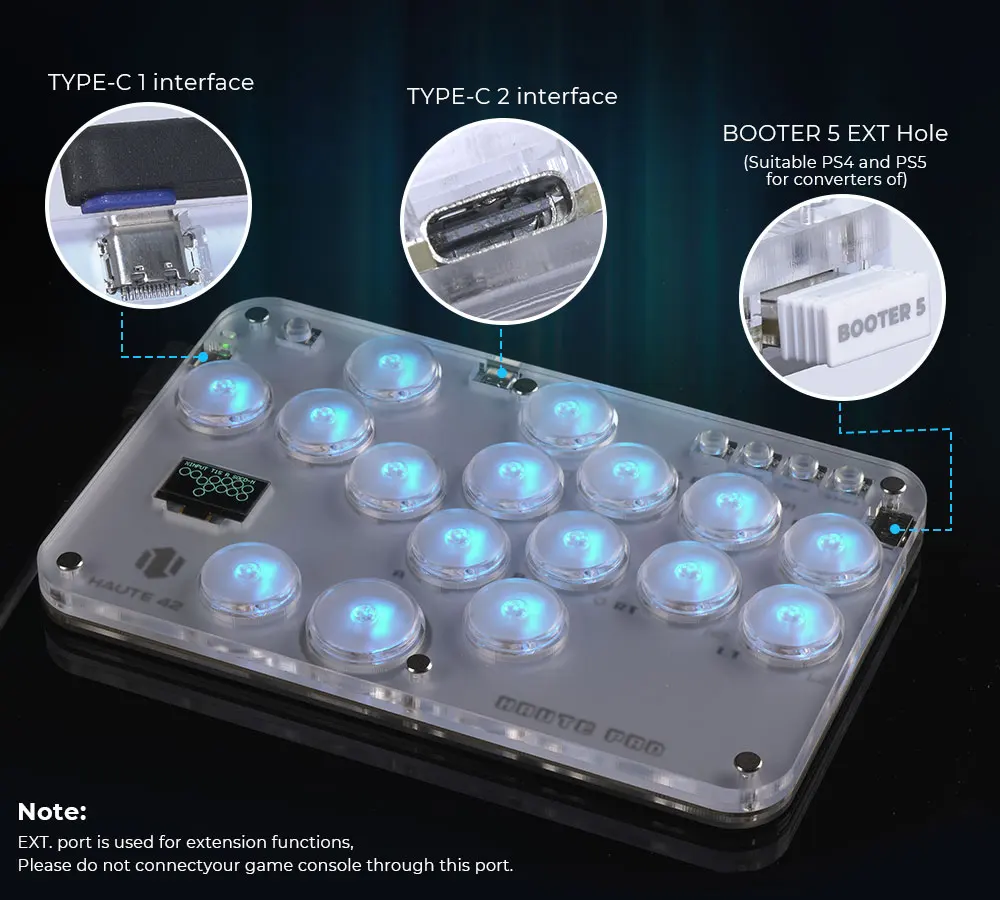
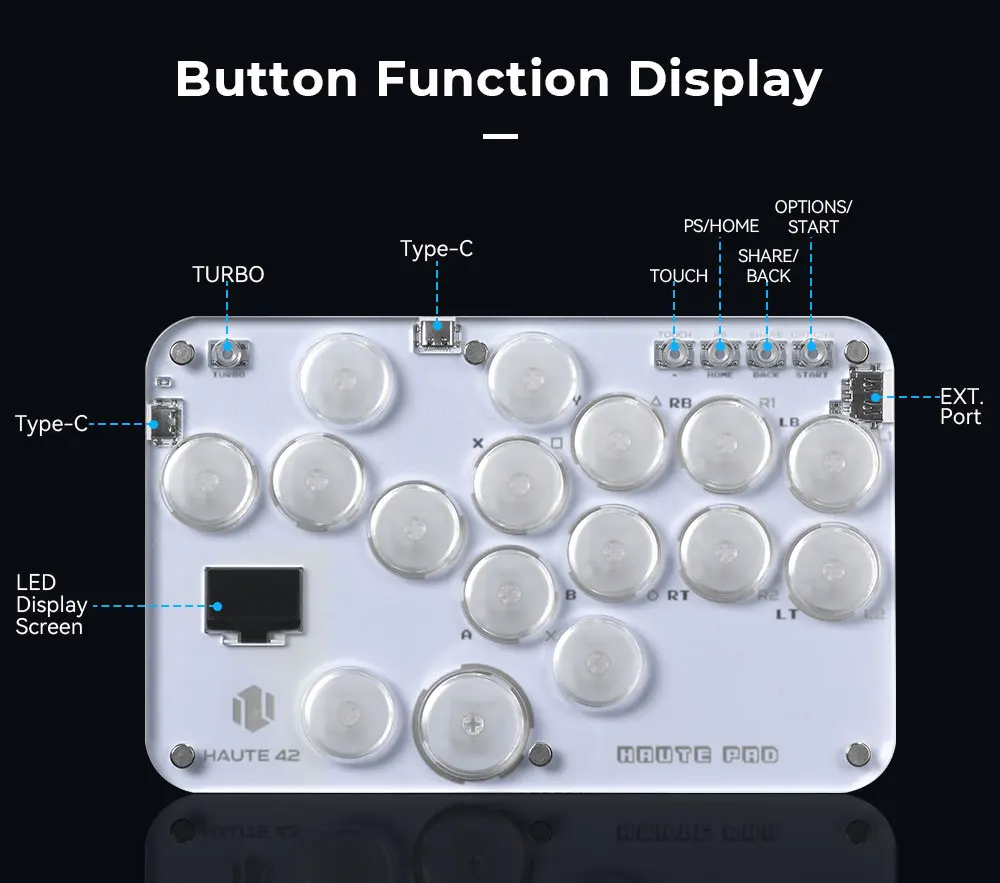
Notice:EXT. port is used for extension functions,
please do not connect your game console through this port.
For Extension functions
Insert official or third-party donles or controllers to bring hautepad more platforms compatibility or more functions.
01 Compatibility
B — Xinput mode (Windows/Steam)
A — SWITCH mode
X — PS3 / Dinput mode (Raspberry Pi / Android)
Y — PS4 mode (Compatible with PS4 games on PS5 console)
RT — KEYBOARD mode
Input Mode
To change the input mode, hold one of the buttons(as shown above) as the controller is plugged in.
Tips:
This product defaults to Xinput mode,Input mode is saved across power cycles.
If there are games that do not compatible the above input modes , you can enter the Web Configurator to modify them for normal use.
PS4 /PS5 Mode
This product will be disconnected at 8 minutes after connecting to the PS4/PS5 console.
You can avoid this 8-Minute Timeout by uploading the verification files which required for PS4 mode. More details, please check on the official website:haute42-cosmox.com
Web Configurator
This product contains a built-in web-based configuration application which can be started up by holding START when plugging your controller into a PC. Then access http://192.168.7.1 in a web browser to begin configuration.
TURBO
Hold TURBO,then press the button which you need to be set for turbo function,then this button will be continuous sending while you press it,to cancel this turbo key,just repeat the privious step.
The turbo key that set will be cleard when power off.
These keys can be set as a Turbo key: A / B / X / Y / LB / RB / LT / RT
04 RGB LED Setting
●BACK + START + X Next Animation
●BACK + START + A Previous Animation
●BACK + START + Y Brightness Up
●BACK + START + B Brightness Down
●BACK + START + RB LED Parameter Up
●BACK + START + RT LED Parameter Down
●BACK + START + LB Pressed Parameter Up
●BACK + START + LT Pressed Parameter Down
D-Pad Modes
You can switch between the 3 modes for the D-Pad while the controller is in use by pressing one of the following default combinations:
● BACK + START + DOWN = D-Pad
● BACK + START + LEFT= Emulate Left Analog stick
● BACK + START + RIGHT= Emulate Right Analog stick
D-Pad mode is saved across power cycles.
Invert D-Pad Y-axis
A toggle is available to invert the Y-axis input of the D-pad, allowing some additional input flexibility. The default hotkey to toggle is to press
● HOME + START + RIGHT = Y-axis inversion
This is a temporary hotkey mapping for this feature, so keep an eye on updated releases for this to change.
SOCD Modes
Simultaneous Opposite Cardinal Direction (SOCD) cleaning will ensure the controller obeys certain directional input rules when sending inputs to the computer/console. Users can choose 1 of the 3 SOCD Modes while the controller is in use by pressing one of the following button default combinations:
● HOME + START + UP = Up Priority mode
Up + Down = Up, Left + Right = Neutral (Standard stickless behavior).
● HOME + START + DOWN = Neutral mode
Up + Down = Neutral, Left + Right = Neutral
● HOME + START +LEFT =Last Input Priority (Last Win)
Hold Up then hold Down = Down, then release and re-press Up = Up. Applies to both axes.
The selected SOCD mode is saved across power cycles.